
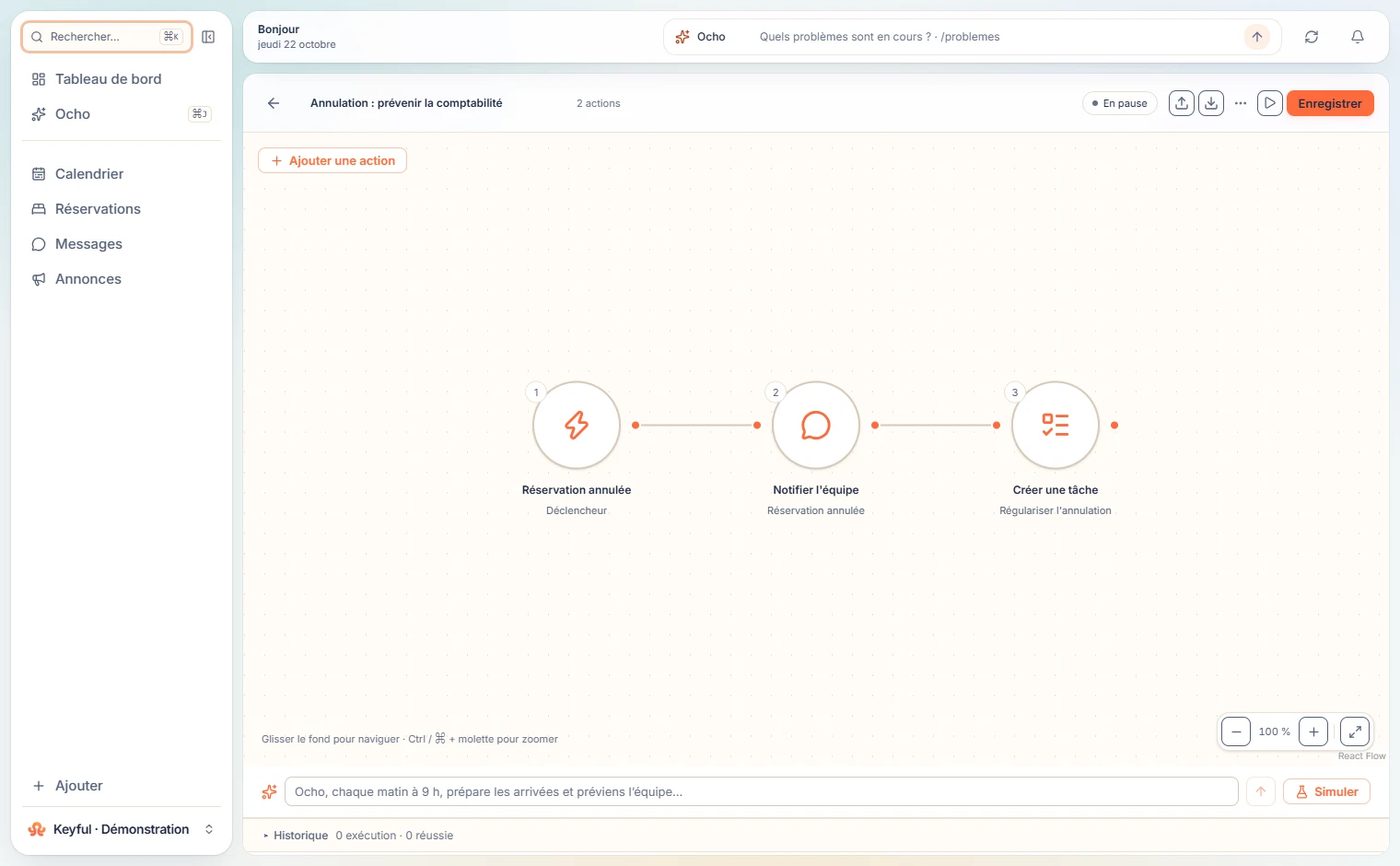
1. Define the trigger
Open Automations and create a workflow. Choose the event, schedule or webhook that matches your procedure. For a schedule, verify the time and organization time zone.
2. Add actions
Add a specific action from the PMS or application catalog. Select the account, complete fields and connect the steps. You can describe the outcome to Ocho to prepare the workflow.
3. Review, test, activate
Save it paused first. Review recipients, dates and parameters. Test with demonstration data and inspect the result. Activation requires the relevant connections and permissions.
Example: prepare arrivals every morning
Send the coordinator a daily arrivals briefing. Start with a test recipient and a short procedure. Add cleaning and incidents after the first version works.
| Step | Configuration |
|---|---|
| Schedule | Daily at 9 am, organization time zone |
| PMS read | Bookings arriving today |
| Condition | Do not send an empty list |
| Service mailbox, internal recipient and briefing |
Ocho, prepare a daily 9 am workflow: find today’s arrivals and draft a coordinator email with properties and available arrival times. Keep it paused so I can review each step.
Simulation and a real test answer different questions
Simulation inspects the procedure without external effects: links, fields and branches. An authorized real test then checks delivery.
Review each step in the execution log. Before enabling recurring delivery, confirm the message arrived at the intended destination exactly once.
- An arrival with complete details.
- A day without arrivals.
- A stay without an arrival time.
- A disconnected account, with a visible failure.
Change a workflow that is already in use
Pause the workflow, save an export and edit the steps. Repeat relevant tests before reactivation. For any new delivery, verify the final email address or phone number.
If a run fails after a successful external action, check its result before restarting the whole procedure. This helps avoid duplicate messages or appointments.